08.24.2026 PropStream
Disclaimer: PropStream Campaign services contracts with third-party vendors who provide, if allowed by law, the email addresses and phone numbers.
PropStream continues to expand how real estate professionals move from property research to instant live outreach. With the launch of PropStream Dialer Campaigns (provided by third-party providers), users can now organize, execute, and track outbound calling campaigns directly inside the Campaigns experience.
This release transforms Click-to-Dial from a standalone calling feature into a structured campaign workflow. Users can launch property-based dialing campaigns from their lists, monitor progress in real time, document conversations with full property context, and automatically sync every activity back to the property record. At the same time, PropStream introduces a modernized campaign creation experience across Dialer, Email, and Direct Mail workflows, making multi-channel outreach easier to launch and manage from a single dashboard.
Together, these enhancements move PropStream closer to a complete lead-to-deal workflow built entirely within a single platform.
Table of Contents |
What’s New in This Release
A New Campaign Type: Dialer Campaign
Dialer Campaigns are now available inside the Campaigns section, joining Direct Mail and Email to give users a complete, property-based outreach workflow.
Steps to create a Dialer Campaign from the ‘My Properties’ tab:
- Select an already skip-traced list of properties from My Properties.
- Click New Campaign on the top navigation bar.
- Choose Dialer.
- Launches a structured outbound calling campaign in dashboard view.
Pro Tip: If no phone numbers are available for the selected properties, a pop-up will appear prompting you to skip trace the list before starting your Dialer Campaign.
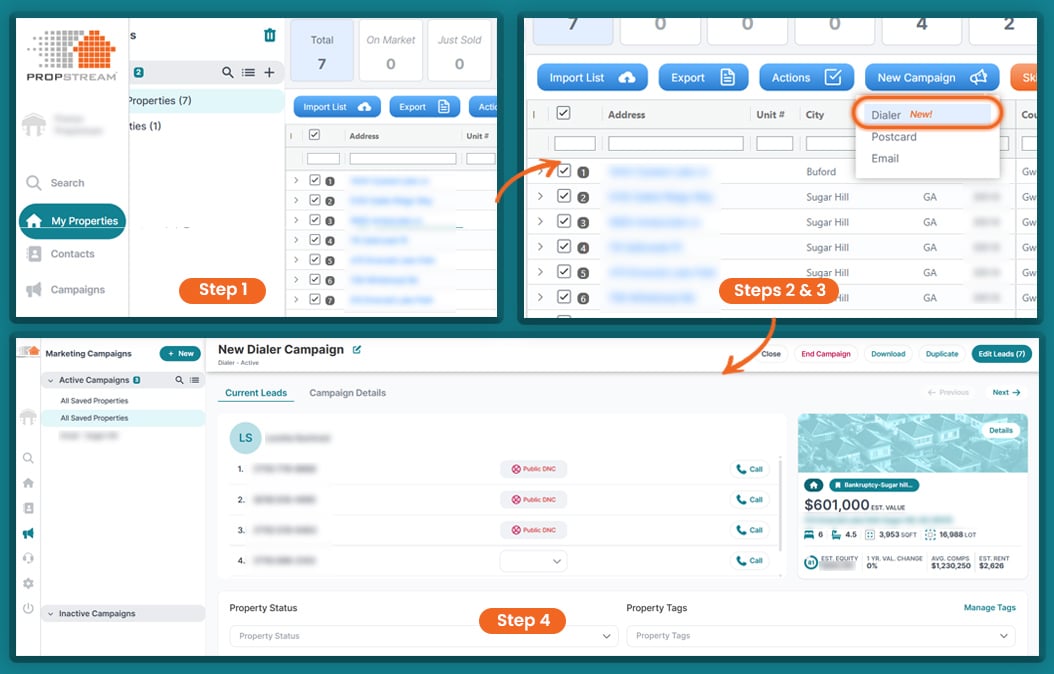
Instead of dialing leads individually across different screens, selected properties now load into a centralized campaign workspace under the Marketing Campaigns tab, streamlining and organizing your cold-calling efforts(as shown in the image below).
|
Dialer Campaigns are available by default to:
|
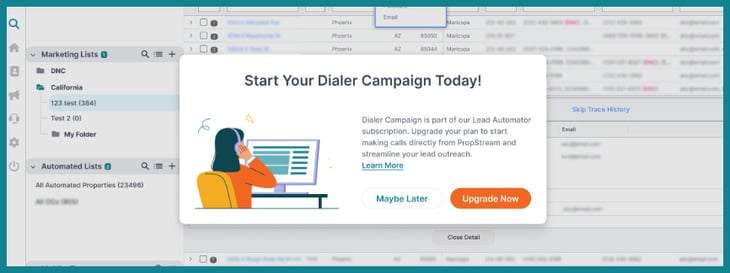
Note: Existing customers who are unable to access the new campaign flow, a simple upgrade workflow will guide you through enabling it.
|
If you need to increase your call volume, explore the BatchDialer add-on and PropStream’s Push to BatchDialer workflow. Active PropStream users can unlock 20% off any BatchDialer monthly plan by signing up directly through the PropStream app. |
Enhanced Dialer Campaign Creation and Management
Once you select your leads and launch a Dialer Campaign, they are loaded directly into a dedicated calling workspace and ready for immediate outreach. Each Dialer Campaign includes an upgraded Calling Card that keeps everything you need in one view.
Contact Information and DNC Visibility
- View contact name and all associated phone numbers.
- See Public DNC and known litigator indicators.
- Use the new My DNC dropdown to mark numbers as Do Not Call at the user level, with updates applied across PropStream.
Connection Tracking
- See a checkmark when a number has been successfully contacted (voicemail or live connection)
- Track connection counts and total dial attempts per number.
- When any number connects, the lead is marked as Contacted.
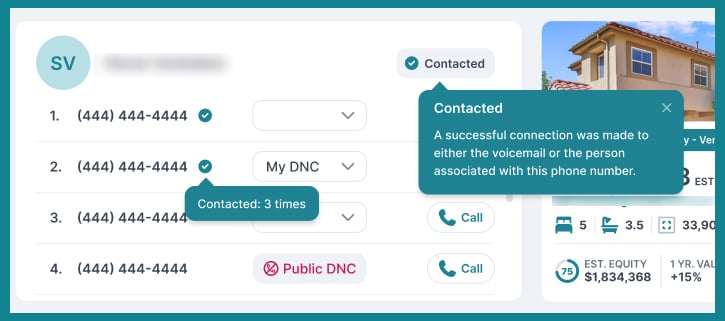
Pro tip: Each calling card will include a property preview card to reference during the call. If more information about the property is needed during the call, you can click on the Property Details button to access the Property Details page.
If you prefer a broader view, you can switch to the Campaign Details screen to see all campaign leads in one place, including phone numbers, property addresses, and ownership details. The detailed campaign list can also be downloaded as a CSV file.
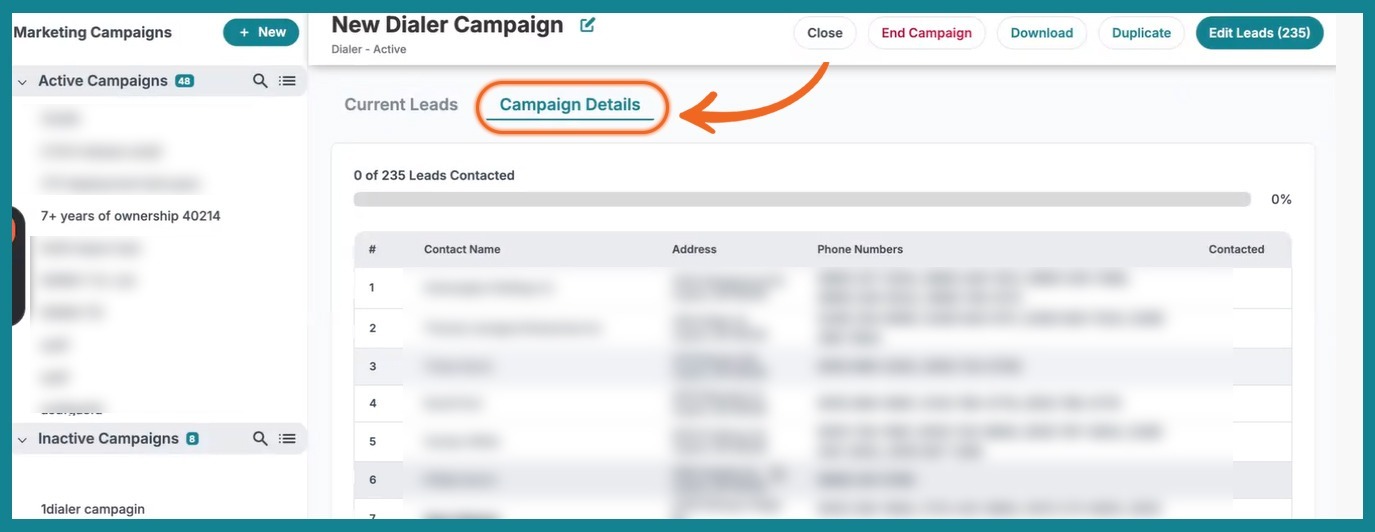
Notes, Status, and Tags panel
The Calling Card includes a built-in panel that helps you document and organize outreach in real time. All updates to Notes, Property Status, and Tags automatically sync to the property record and can be accessed at any time through the Status/Tags section of the Property Details page.
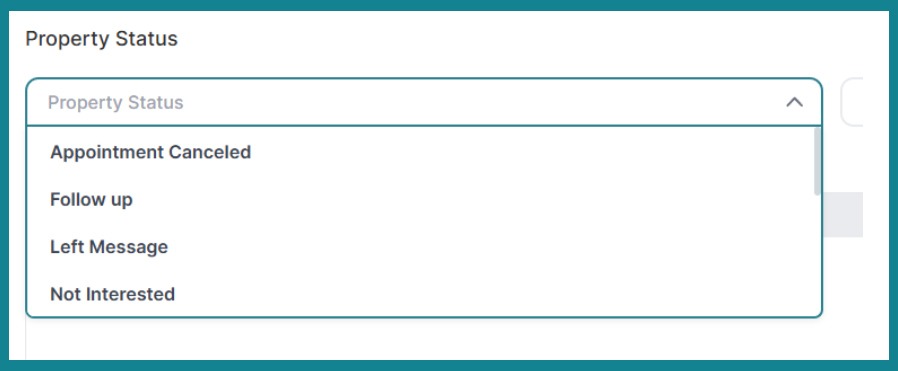
1. Update Property Status: Select the outcome of your outreach using a dropdown, such as Left Message, Appointment Canceled, Not Interested, or Follow Up.
2. Apply and Manage Tags: Use preset tags or create custom tags to document property conditions or lead scenarios. Selecting Manage Tags allows you to add new tags or suggest additional ones.
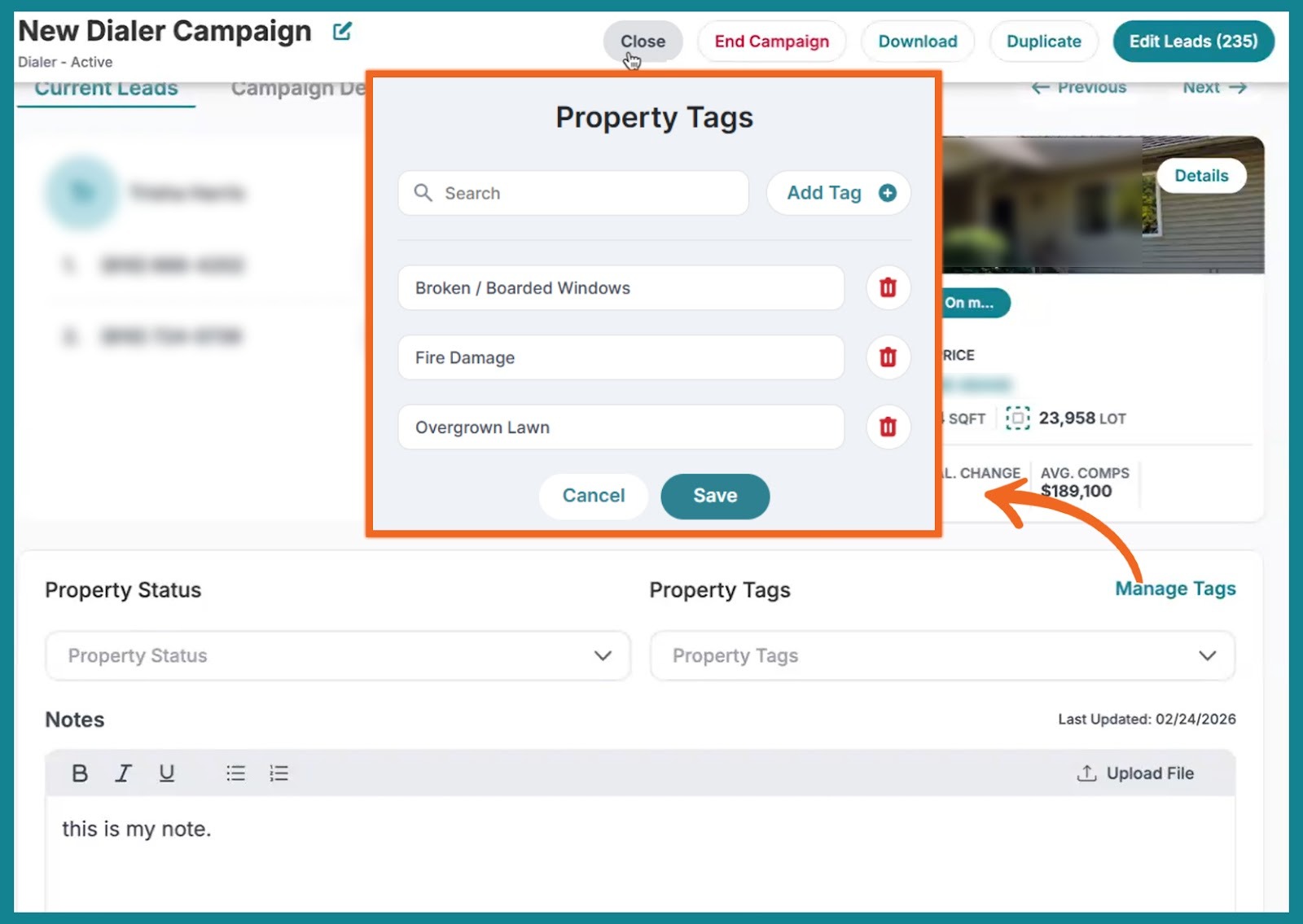
3. Add Call Notes and Upload Files: Record custom notes about your outreach and upload supporting documents.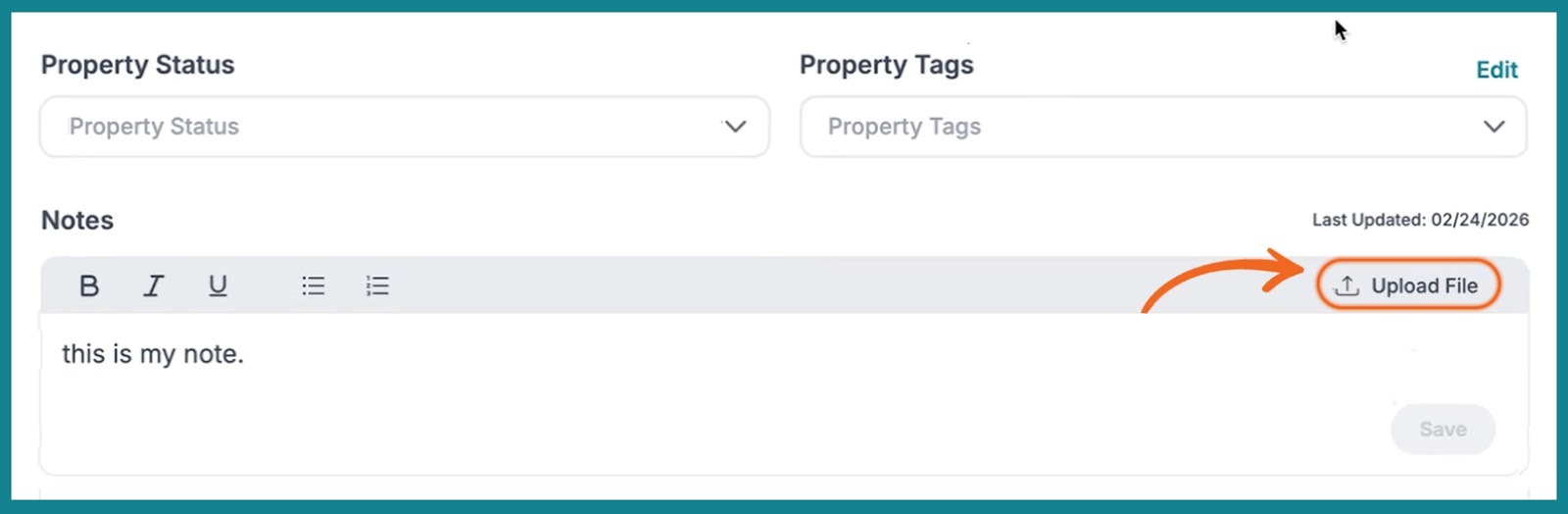
Uploaded files automatically appear in the Documents and Reports section of the Property Details page. You can upload up to 3 files at a time, and the default view displays 3 files with the option to view more.
Pro Tip: All updates made within the Dialer Campaign sync directly to the property record and are available for export, keeping your outreach history organized and accessible.
4. Manage, Duplicate, and Export Campaigns
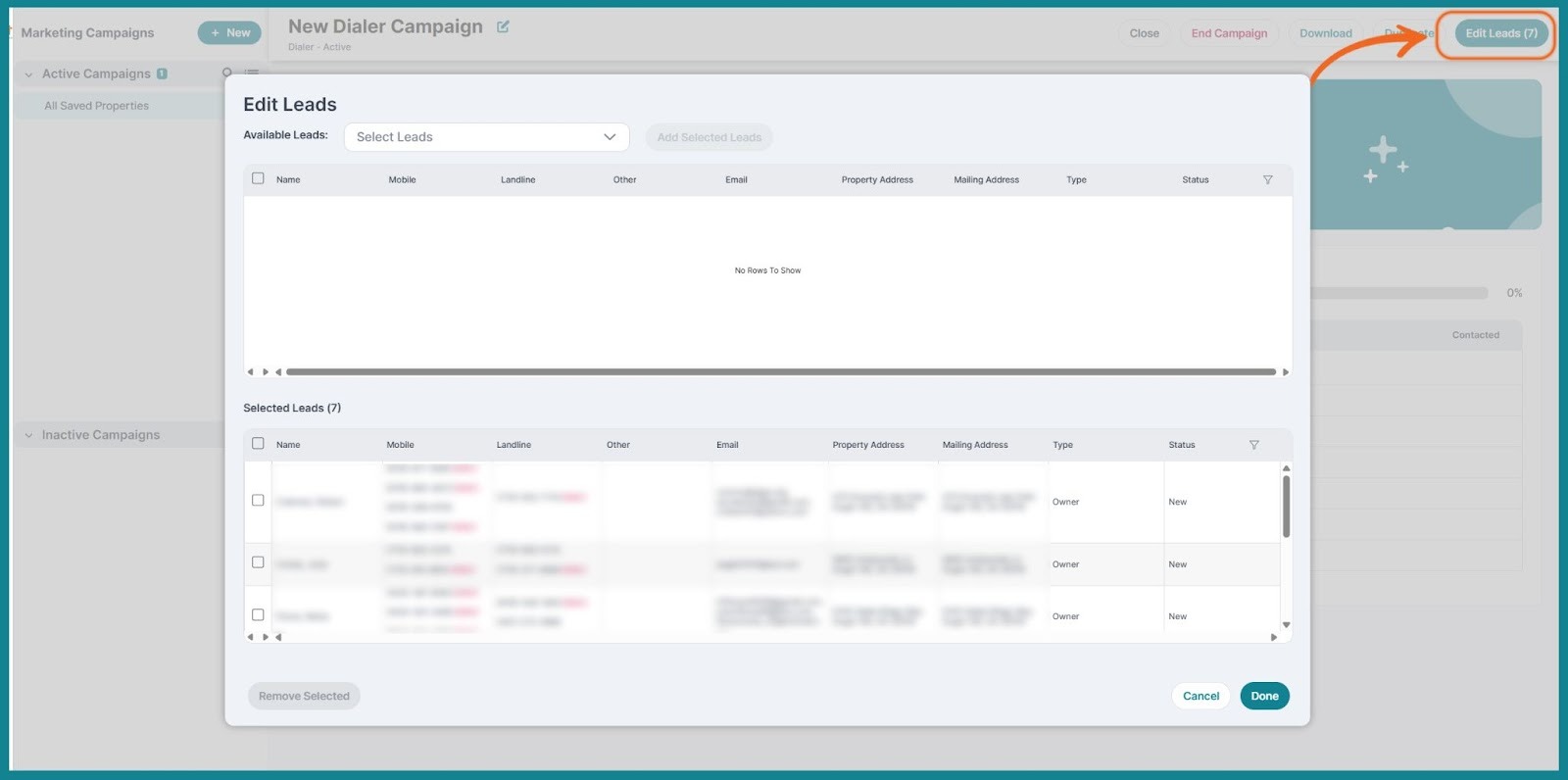
All dialing campaigns can be edited, including functions such as removing and adding leads to a campaign, by selecting Edit Leads, duplicating a campaign for a new outbound lead, and downloading your campaign leads for review or importing them into your CRM.
Team Collaboration Within Dialer Campaigns
Within the campaign, you can view the Property Details page and assign team members to specific properties for clear follow-up ownership. These assignments are reflected directly on the Property Details page, ensuring visibility across your team.
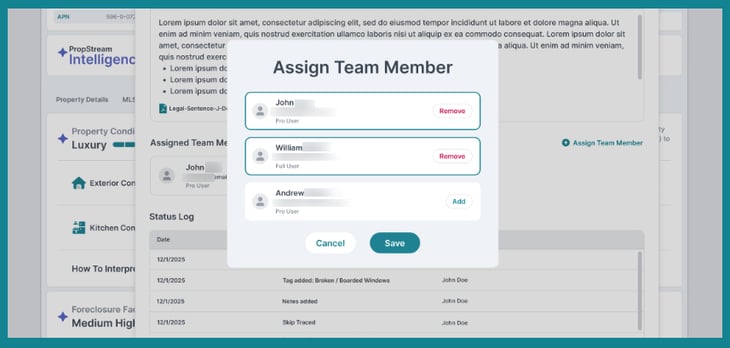
This helps teams divide outreach efficiently, prevent duplicate calls, and ensure no lead falls through the cracks. With clear ownership and shared visibility, follow-ups happen faster, and campaigns stay organized.
Once you have finished your Dialer Campaign outreach, you can end the campaign.
New Campaign Overview with Status and Progress Tracking
The Campaign Overview screen gives you a clear snapshot of all your outreach activity, including both active and inactive campaigns.
|
From this view, you can quickly see:
|
Within each campaign, you can also review contact history details, including how many times a number has been dialed and which numbers have resulted in a successful connection.
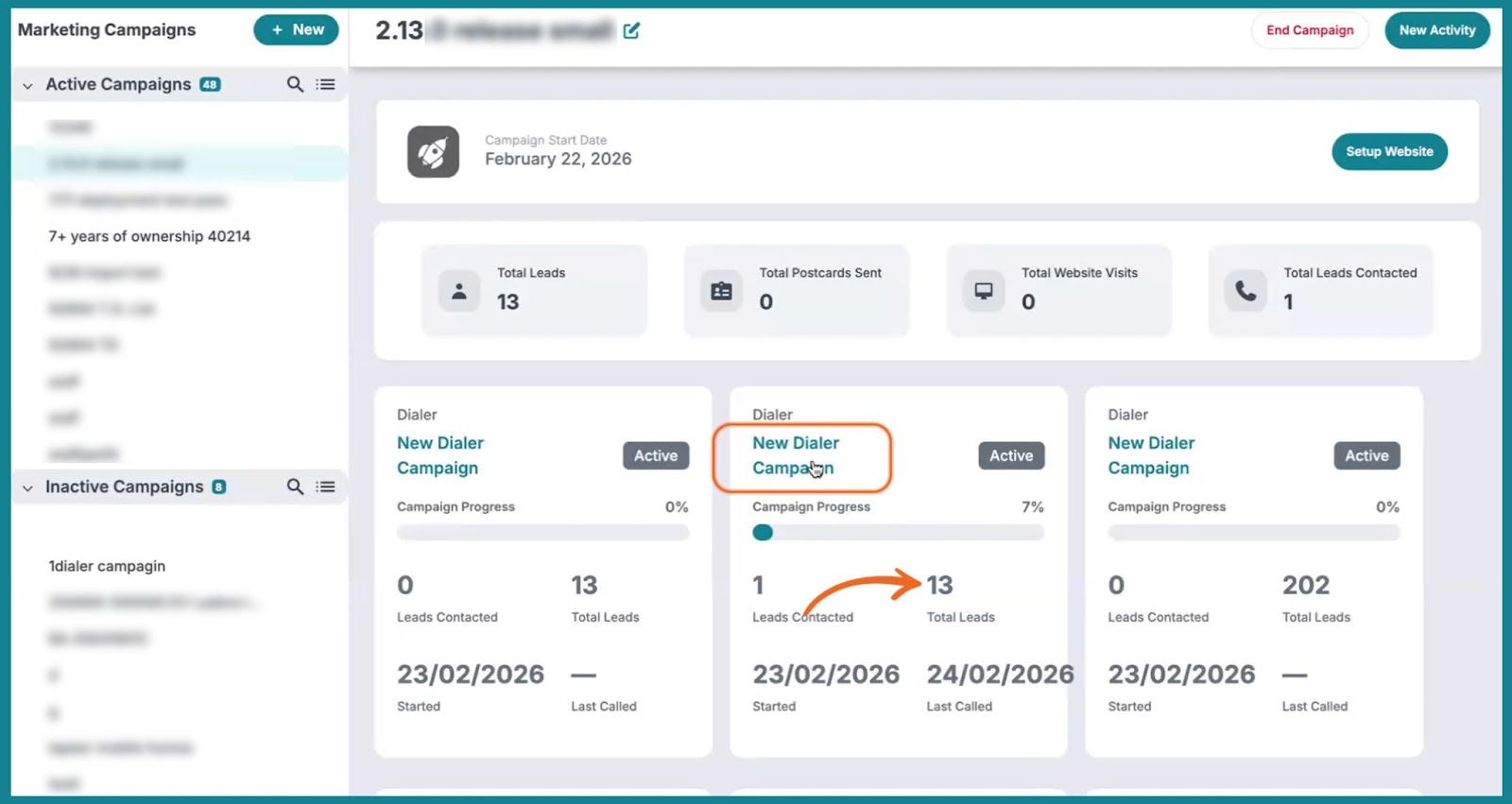
This overview makes it easy to monitor progress, prioritize follow-ups, and understand campaign performance without digging through individual records.
Enhanced Email and Direct Mail Campaign Insights
In addition to Dialer Campaign improvements, this release also introduces clearer summary overviews for Email and Direct Mail campaigns.
From the Campaign dashboard, you can now quickly view key performance metrics such as:
- Number of emails sent
- Email click-through rates
- Number of direct mail pieces sent
Ready to Organize Your Outbound Calling?
Whether you’re a solo investor or managing a team, with Dialer Campaigns, you can move from research to structured outreach in minutes. Assign leads, track progress, and keep everyone aligned all in one workspace.